Automatically Sync Calibre Reading Progress to Goodreads
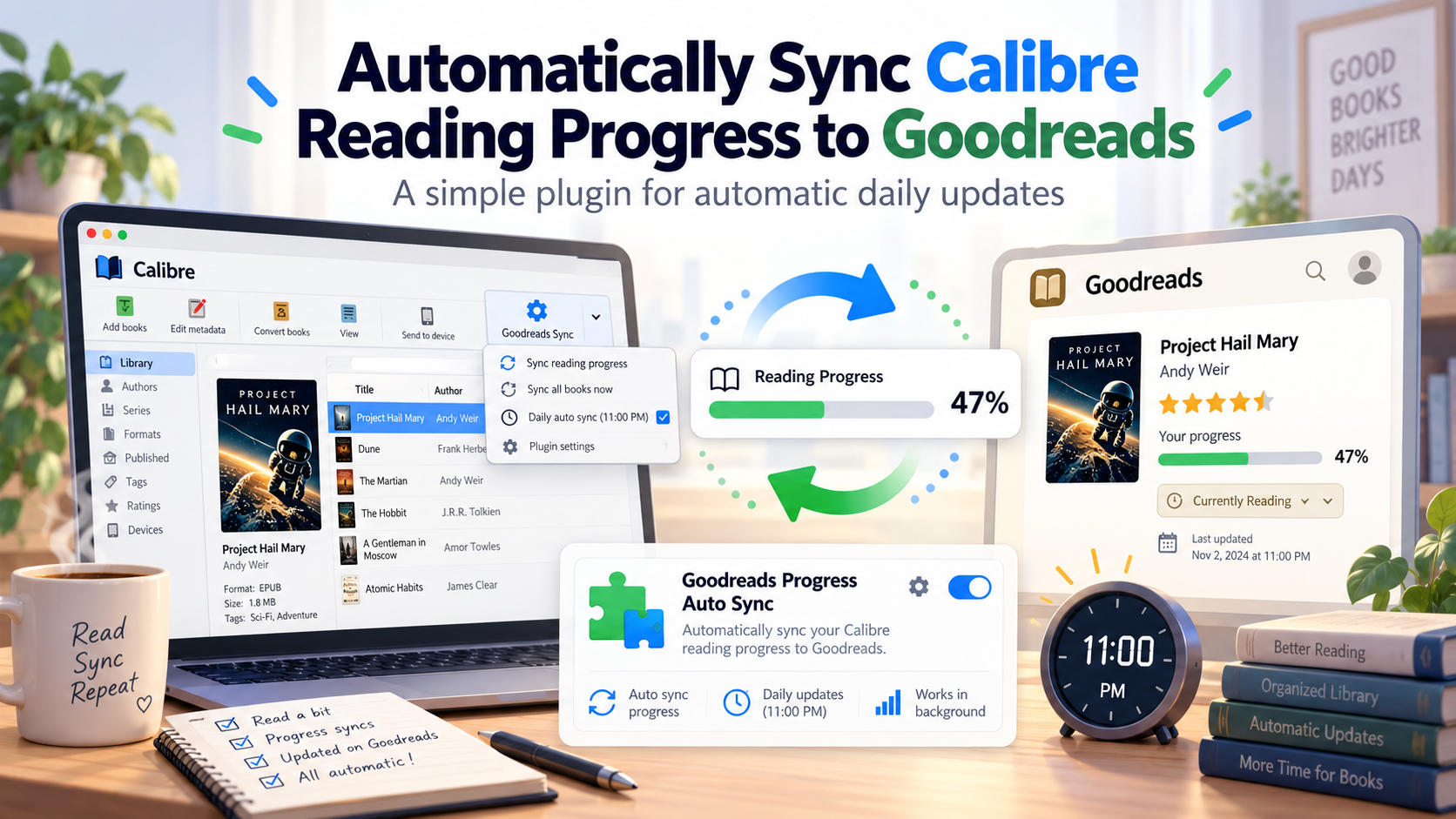
If you read books using Calibre’s built-in E-book Viewer and track your reading on Goodreads, there is one annoying gap: Calibre knows exactly how far you have read, but Goodreads does not automatically receive that progress. I built a small Calibre plugin to bridge that gap.
The plugin reads your saved progress from Calibre’s built-in viewer, compares it with the last progress value sent to Goodreads, and silently updates Goodreads when your progress changes. It can run automatically once per day at a configurable time, or manually from a toolbar button.
The result is a workflow like this:
Calibre E-book Viewer
        ↓
Saved reading progress
        ↓
Goodreads Progress Auto Sync
        ↓
Goodreads
What the plugin does
The plugin is designed around one simple idea: Calibre already stores your reading position, so there is no reason to manually type a percentage into Goodreads.
It:
- scans your entire Calibre library;
- reads progress from Calibre’s built-in E-book Viewer;
- ignores books that do not have a Goodreads link;
- checks whether the current progress differs from the last successfully synced value;
- sends the new percentage to Goodreads;
- updates your Calibre progress column only after Goodreads accepts the update;
- runs without opening the normal Goodreads Sync confirmation window;
- supports an automatic daily sync time;
- includes a toolbar button for immediate manual syncing.
For example, if Calibre shows that you are at 47% and the last value sent to Goodreads was 39%, the plugin sends 47% to Goodreads and then records 47 as the new synced value.
If you are still at 47% the next day, it does nothing.
Prerequisites
Before installing the plugin, you need the following.
Calibre 9.5 or newer
The plugin relies on Calibre’s built-in reading-progress functionality for the E-book Viewer.
You should be reading your books using the standard Calibre E-book Viewer.
Goodreads Sync plugin
The plugin does not implement Goodreads authentication itself.
Instead, it uses the existing Goodreads Sync Calibre plugin for:
- your Goodreads authorization;
- Goodreads book IDs;
- the Goodreads connection;
- sending reading-progress updates.
So Goodreads Sync must already be installed.
A Goodreads account configured in Goodreads Sync
You need to authorize Goodreads Sync with your Goodreads account before this plugin can send anything.
A numeric progress column
Goodreads Sync expects a numeric custom column for reading progress.
I recommend using an Integer column.
For example:
Lookup name:
#goodreads_progress

Column heading:
Goodreads Progress

Type:
Integer
The plugin uses this column as the last successfully synced progress value.
Goodreads-linked books
Each book you want to sync must have a Goodreads identifier in Calibre.
The plugin intentionally does not guess which Goodreads book corresponds to a Calibre book.
Step-by-step setup
Step 1: Install Goodreads Sync
In Calibre, open:
Preferences → Plugins → Get new plugins
Search for:
Goodreads Sync
Install it and restart Calibre if prompted.
Step 2: Authorize Goodreads Sync
Open:
Preferences → Plugins → Goodreads Sync → Customize plugin
Configure your Goodreads account and complete the authorization process.
Before continuing, make sure the normal Goodreads Sync plugin works manually.
For example, you should be able to link a book to Goodreads or perform a normal Goodreads Sync operation.
Step 3: Create a numeric progress column
Open:
Preferences → Add your own columns
Click the + button and create a new column.
Use something like:
Lookup name:
goodreads_progress

Column heading:
Goodreads Progress

Column type:
Integers
Calibre will expose the lookup name as:
#goodreads_progress
Restart Calibre if requested.
Step 4: Configure Goodreads Sync to use that column
Go back to:
Preferences → Plugins → Goodreads Sync → Customize plugin
Find the reading-progress settings.
Set:
Reading progress column:
#goodreads_progress
Enable:
Reading progress is % read
You can also enable the normal Goodreads Sync Update reading progress menu item if you want, but the automatic plugin does not depend on the dialog-based workflow.
Step 5: Link your books to Goodreads
For a book to be updated automatically, Calibre needs to know its Goodreads book ID.
Select a book and use:
Goodreads → Link to Goodreads
Choose the correct edition.
Once linked, the Calibre book should contain a Goodreads identifier.
You only need to do this once per book.
Step 6: Install Goodreads Progress Auto Sync
In Calibre, open:
Preferences → Plugins → Load plugin from file
Select the plugin ZIP file.
Accept the security warning if you trust the plugin, then restart Calibre.
Step 7: Add the toolbar button
Open:
Preferences → Toolbars & menus
Choose:
The main toolbar
From the list of available actions, find:
Sync Goodreads Progress
Move it to the current toolbar actions.
Click Apply.
You should now have a Goodreads progress-sync button in the Calibre toolbar.
The main button performs an immediate sync.
Its dropdown menu includes:
Sync now
Set automatic sync time...
Automatic sync schedule
Setting the automatic sync time
You can configure the schedule in two ways.
Method 1: From the toolbar
Click the dropdown arrow next to:
Sync Goodreads Progress
Choose:
Set automatic sync time…
Select your preferred daily time.
For example:
11:00 PM
Click OK.
Method 2: From plugin settings
Open:
Preferences → Plugins
Find:
Goodreads Progress Auto Sync
Click:
Customize plugin
You should see:
Daily sync time
Choose the time you want and save the settings.
The default is 11:00 PM.
One important limitation is that Calibre must be running at the scheduled time. The plugin runs inside the Calibre application, so it cannot wake up Calibre or run while Calibre is closed.
Testing the plugin
You should test it manually before relying on the daily schedule.
Open a book in the Calibre E-book Viewer.
Move to an obvious position, for example:
35%
Close the viewer so Calibre saves your position.
Make sure that:
- the book is linked to Goodreads;
- Goodreads Sync is authorized;
- your progress column is configured.
Then click:
Sync Goodreads Progress
The plugin scans the library and updates any eligible books whose progress has changed.
You should see a status message similar to:
Goodreads progress sync:
1 sent, 4 unchanged, 0 failed.
Then check Goodreads.
Your reading percentage should now reflect your Calibre reading position.
How the progress tracking works
One design decision is worth explaining.
The custom column does not simply mirror the current Calibre reading position.
Instead, it represents:
the last progress value successfully sent to Goodreads
Suppose your current state is:
Calibre viewer progress:     63%
Goodreads Progress column:   55
The plugin detects:
63 != 55
It sends 63% to Goodreads.
If Goodreads accepts the request, the plugin updates the Calibre column:
Goodreads Progress column: 63
The next time the plugin runs:
63 == 63
so no new update is sent.
This prevents duplicate Goodreads status posts every day.
Which books are synced?
The plugin scans the entire current Calibre library.
It does not depend on which book is selected.
A book is considered for syncing when:
Calibre viewer progress exists
AND
progress is greater than 0
AND
the book has a Goodreads identifier
AND
the progress differs from the last synced value
Books without Goodreads links are skipped.
Books with no saved viewer progress are also skipped.
What happens at 100%?
The current plugin can send:
100%
as reading progress.
However, it does not currently perform a separate Goodreads shelf transition to automatically move the book to the Read shelf.
That could be added as a future enhancement.
Using the plugin on another computer
To use the plugin on another machine, you need to repeat the basic setup:
- Install Calibre 9.5 or newer.
- Install Goodreads Sync.
- Authorize Goodreads Sync.
- Create the numeric Goodreads progress column.
- Configure Goodreads Sync to use that column.
- Make sure your books have Goodreads identifiers.
- Install Goodreads Progress Auto Sync.
- Add the toolbar button.
- Choose your automatic sync time.
If both computers use the same Calibre library metadata, your Goodreads identifiers and custom progress column can travel with the library.
The plugin itself does not synchronize your Calibre library between computers.
Why use this instead of the normal Goodreads Sync progress window?
Goodreads Sync already has an Update reading progress command, but it is designed as an interactive workflow.
It:
- works with selected books;
- opens a progress dialog;
- expects user confirmation.
That is useful for manual control, but less useful for automation.
This plugin uses Goodreads Sync’s underlying Goodreads connection directly, allowing the process to happen silently.
That makes it much better suited for a daily automated workflow.
Final setup
Once everything is configured, the workflow is almost invisible:
Read normally in Calibre
        ↓
Close the E-book Viewer
        ↓
Calibre saves your position
        ↓
At your configured daily time
        ↓
Plugin scans your library
        ↓
Changed progress is sent to Goodreads
You can still use the toolbar button whenever you want an immediate sync.
For anyone who prefers reading inside Calibre but still uses Goodreads to track reading activity, this removes one of the most repetitive manual steps from the process.